
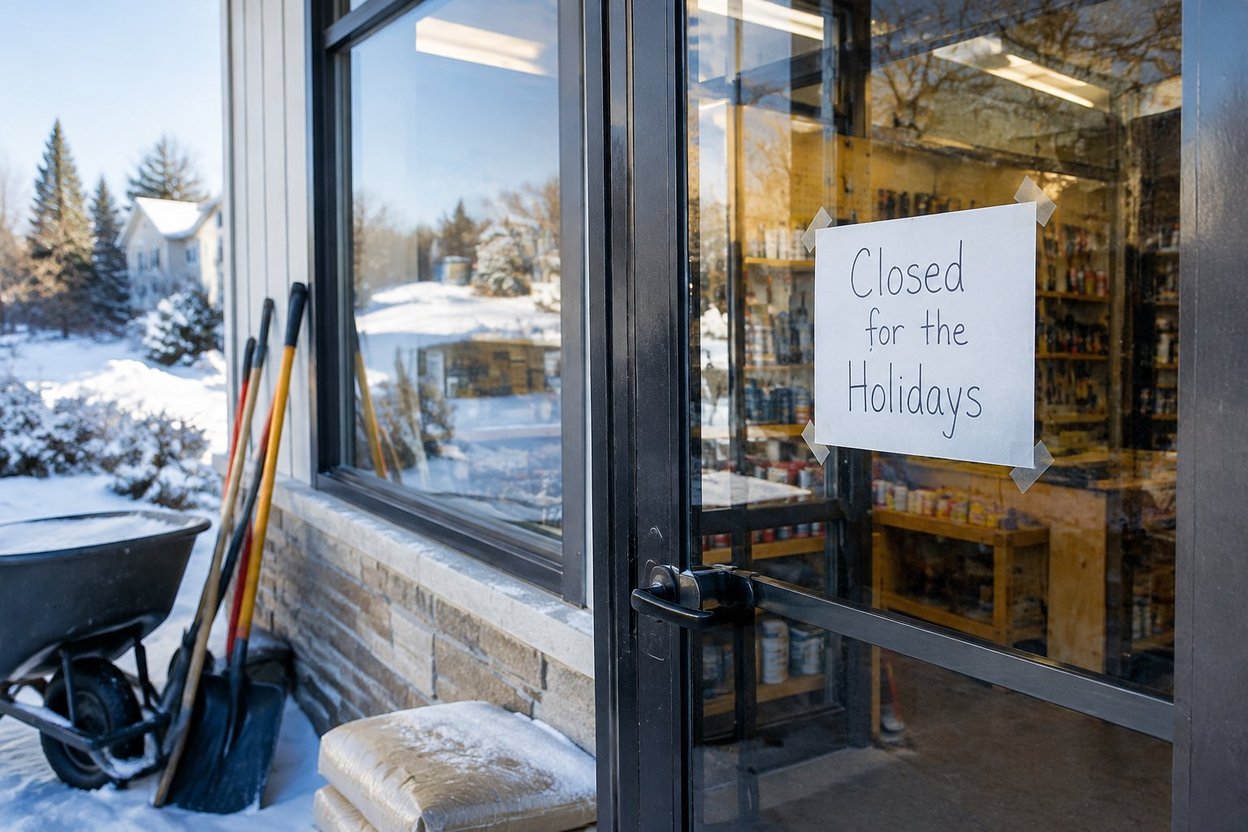

Every December someone finds you on Google, sees "Open," and calls on Christmas morning. Or they see "Closed" and call somebody else, even though you'd have taken the job. To stop both, set your holiday days under Google's Special hours. Leave your regular hours alone. It takes about ten minutes, you can do it this week, and Google switches back to your normal hours when the holidays are over. Here is how to do it, and how to make your website, voicemail and other listings say the same thing.
The short answer and the steps
Special hours are Google's tool for a short, temporary change like a holiday. Your regular hours stay as they are. That's the whole point: you're not rewriting your week, only marking a few days.
Here's the path on Google's help page:
- Open your Business Profile and tap Edit profile.
- Go to Hours.
- Tap the pencil (edit) icon next to Special hours.
- Choose a date Google suggests (Review), or tap Add a date to pick your own. For most of us that means Dec 24, Dec 25, Dec 31 and Jan 1. This year Christmas Eve and New Year's Eve land on Thursdays, so Christmas and New Year's Day are both Fridays. If you plan to take those Fridays through the weekend, add the extra days too.
- For each day, leave Closed checked if you're off. If you're working, uncheck it and type in your hours.
- Tap Save.
Google has renamed these menus over the years. Older guides call them "Holiday hours" and put them under "Business information." Use whichever label your screen shows.
Two things to know first. Special hours only show if your profile is set to "Open with main hours," so you need regular hours set up before any of this works. And you can do it well ahead of time. Google changes the hours on the date itself, and Search Engine Journal's example sets them three months out. You don't have to remember on Christmas Eve, or switch things back on January 2nd.
Late October is a good time to do it. Halloween and Thanksgiving are coming, and the closer December gets, the less time you'll have.
Closed, short hours, or "call me anyway"
Most holiday days fall into one of three cases, and the Special hours screen handles all of them.
Closed all day. Leave "Closed" checked and save. That's it.
Short hours. Say you'll work Christmas Eve morning and quit at noon. Uncheck "Closed" and enter something like 8:00 AM to 12:00 PM.
Two sets of hours in one day. Maybe you'll take calls for a couple of hours in the morning and again in the late afternoon. Use More, then Add hours, to put a second time block on the same day. One set of special hours can't go past 24 hours.
Google also suggests confirming your hours for official holidays even if they're the same as usual. If you're working a normal day on New Year's Eve, enter those hours anyway. Search Engine Journal says this shows searchers your information is verified, so they don't have to wonder if you forgot to update it.
A note for anyone who takes emergency calls. A lot of us shut down for the holiday but will still come out for a burst pipe, a door that won't lock, or siding torn off in a storm. The hours box only knows open or closed and the times. It has no room to say "closed, but call for emergencies." So say it in places that can. Put a line on your website, and record a voicemail greeting that tells callers what counts as an emergency and how to reach you. Then your Google listing stays accurate, and the customer who really needs you still knows they can call.
Closed a whole week? Don't use Special hours
Plenty of one-man shops take the whole stretch between Christmas and New Year's off. If that's you, Special hours might not fit.
Google says Special hours are meant for closures of up to 6 days in a row. For 7 days or more, or if you don't know yet when you'll reopen, Google says to mark the business temporarily closed instead.
So here's the choice:
- Off 6 days or fewer: use Special hours and mark each day closed. Your listing reads as a normal, open business with a few days off.
- Off 7 days or more: mark the profile temporarily closed, then switch it back when you return.
There's a trade-off. One marketing agency's guide says a "temporarily closed" listing may rank lower for broad searches while it's marked that way. That's their claim, not Google's, but it's worth thinking about. Temporarily closed is also a switch you have to flip back yourself, unlike Special hours, which end on their own.
If your break is right around a week, you may be better off trimming it to six days, or working one short day in the middle, so you can stay on Special hours. That's my opinion, not a rule. If you'll be gone two weeks, mark it temporarily closed and set a reminder to reopen it.
Make everything else match
Getting Google right is half the job. The other half is making sure nothing else contradicts it. If Google says closed and your website says open, the customer doesn't know which one to believe, and then they don't trust either.
BrightLocal's advice is to make the same change everywhere your hours appear, and Whitespark says the same: match your website hours to your Google listing and post the holiday hours on the site. For a small trade business, that list usually looks like this:
- Your website. Change the hours on the contact page and add a short holiday notice near the top.
- Facebook. Update the hours on your business page.
- Apple Maps. Update them there too. iPhone users see that listing.
- Your voicemail greeting. Say which days you're off, when you're back, and what to do in an emergency.
- Your email auto-reply. Use the same days and the same return date.
BrightLocal also suggests writing down every change you make, what it said before and what you changed it to, and setting a reminder to undo it. This matters most for the things that don't switch back on their own. Google's Special hours end by themselves, but your voicemail and auto-reply won't. Put a reminder in your phone for the day you're back.
BrightLocal cites a 2022 survey finding that incorrect opening hours led 48% of consumers to lose trust in a business. You don't need a survey to know it, though. A listing that says open when you're not makes it look like nobody's watching the shop.
Quick checklist, and what to do in January
Before the holidays:
- Regular hours are set, and the profile says "Open with main hours"
- Special hours entered for Dec 24, 25, 31 and Jan 1, plus any extra days off
- Off 7 days or more? Mark it temporarily closed instead
- Check your profile a day after saving to make sure the hours show
- Website, Facebook and Apple Maps match
- Voicemail and email auto-reply recorded, with an emergency line if you take those calls
- Reminder set for the day you're back
In January:
- Look up your own listing on Google and make sure it shows your regular hours again
- If you marked it temporarily closed, open it back up
- Change the voicemail and auto-reply back
- Keep your list of changes in a note titled "Holiday hours." Next October, you'll do this in five minutes.