
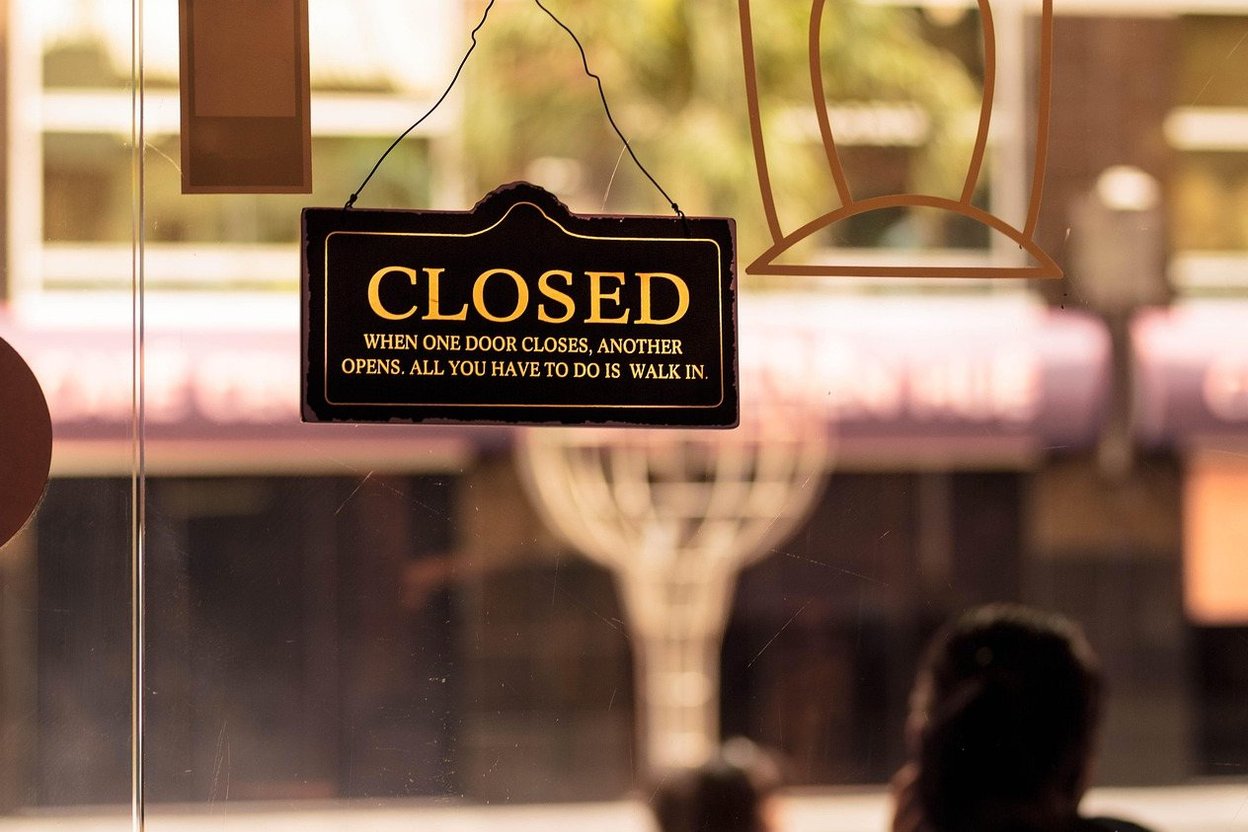

When Thanksgiving is close and your Google listing still shows your regular Thursday hours, customers have no clear way to know whether you’re open. Add a Special hours entry for Thanksgiving and mark the date closed or enter the hours you’ll cover.
Thanksgiving falls on Thursday, Nov. 26, 2026. You can set the other holiday dates in one sitting, then check that your public listing and any Local Services Ads schedule match the hours you’ll actually answer calls.
The short answer: set "Special hours" tonight
Google shows your regular Thursday hours unless you add a Special hours entry for Thanksgiving. In your Business Profile, go to Edit profile > Hours > Special hours > Edit, pick the suggested date or select Add a date, mark Closed or enter your shorter hours, then select Save.
Set the dates you already know for the full holiday stretch: Thanksgiving on Nov. 26, Black Friday on Nov. 27, Christmas Eve on Dec. 24, Christmas Day on Dec. 25, New Year’s Eve on Dec. 31, and New Year’s Day on Jan. 1, 2027. You can close for some dates and enter reduced hours for others.
The federal holiday calendar lists Thanksgiving on Nov. 26, 2026, and Christmas Day on Dec. 25, 2026. You can verify the dates against the 2026 federal holiday schedule. Setting all six entries takes about 10 minutes when you have your schedule in front of you.
Why Google "still shows you as open"
Your regular weekly hours apply each week until a Special hours entry overrides a particular date. If your profile says you’re open Thursday, those hours remain on Thanksgiving until you add the holiday date.
Google may show a warning on an official holiday saying your hours “might differ.” That notice leaves customers guessing about whether you’ll take calls or serve them that day. Google recommends confirming holiday hours even when you plan to keep your usual schedule, so customers see a clear answer.
There’s one profile setting to check: Special hours display only when your profile is set to Open with main hours. If that setting isn’t active, the Special hours option won’t work as expected.
Step by step, including the tricky cases
Use the Special hours controls in your Business Profile on a phone or computer, and enter each date separately. Keep your regular weekly schedule intact so it’s ready when the holiday period ends.
Open your Business Profile, select Edit profile, then Hours. Find Special hours, select Edit, choose a suggested date or Add a date, and mark Closed or enter the hours you’ll be open. Select Save and repeat for each date.
For a day with two separate work periods, select Add hours to enter each block, such as 8 a.m. to noon and a later afternoon shift. Special hours can cover up to six days in a row. If you’re closing for seven or more days, such as a Christmas-to-New-Year shutdown, use Temporarily closed.
If you manage several profiles, you can upload holiday dates in bulk with a spreadsheet. Enter x for a date when the business is closed. After saving, search for your business from a phone where you aren’t logged in and check the public listing.
Why it costs money now if you run Local Services Ads
Since Oct. 1, 2026, Google bills a missed call as a lead when the call arrives during your business hours and the caller stays on the line for more than 20 seconds. Google defines business hours for this rule as the hours on your Business Profile.
If your profile shows you open on Thanksgiving while you’re away from the phone, a missed call that passes the 20-second mark can become a charge. Set the holiday hours to reflect your real availability, then match your Local Services Ads schedule or pause the ad for the day.
Google’s guidance connects Local Services Ads business hours with the hours on your Business Profile, but the effect of a Special hours “Closed” entry on billing isn’t stated outright. Matching the ad schedule or pausing the ad gives you another way to avoid running ads during hours you won’t answer.
Open, closed, or "emergencies only"?
Post the hours you can cover and make your emergency-call instructions clear. If you take emergency calls on Thanksgiving, enter short hours you’ll answer and update your voicemail with the way customers can reach you for emergencies.
An SEO agency’s advice is to avoid listing yourself as open when calls go to a line nobody answers. A customer who calls during your posted hours and reaches no one may leave a bad review. That is a practical risk, not a guaranteed result.
If you’re fully off for the holiday, mark the date closed. If you’ll answer calls only for urgent work, use hours that reflect when you’ll be available and make the voicemail instructions match.
Your 10-minute holiday checklist
List every date you’ll be closed or working reduced hours through Jan. 1, 2027. Add each date to Special hours tonight, including Nov. 26, Nov. 27, Dec. 24, Dec. 25, and Dec. 31 if those dates apply to your business.
Match your Local Services Ads schedule to the hours you’ll answer, or pause the ad for any day you won’t take calls. Search your business name in a private browser window and confirm the public listing shows the intended hours.
Set a reminder for Dec. 20 to re-check your Christmas-week schedule and update any hours that have changed.
Sources (1)
Photo by nhattienle94 on Pixabay.